
MovieBox Download Options
MovieBox offers four main download choices for different devices. Android users can install the mobile app, Mac users can choose the macOS version, PC users can use the desktop option, and TV users can install the TV APK for bigger-screen viewing.
MovieBox App Download
Best for Android phones and tablets. Use this option if you want the standard mobile MovieBox experience with quick access, streaming, and offline viewing.
MovieBox for Mac
Best for macOS users who prefer watching on a laptop or desktop screen. Choose this version when installing MovieBox on a Mac device.
MovieBox PC
Best for Windows PC and laptop users who want a larger-screen viewing setup. Use this option for desktop installation guidance and access.
MovieBox TV APK Download
Best for TV boxes and compatible Android TV devices. Choose this APK when you want MovieBox on a larger home entertainment screen.
MovieBox App Download
Use the Android APK option if you want to install MovieBox on an Android phone or tablet. The process is simple: download the APK file, allow installation when Android asks for permission, and then open the app to start watching.
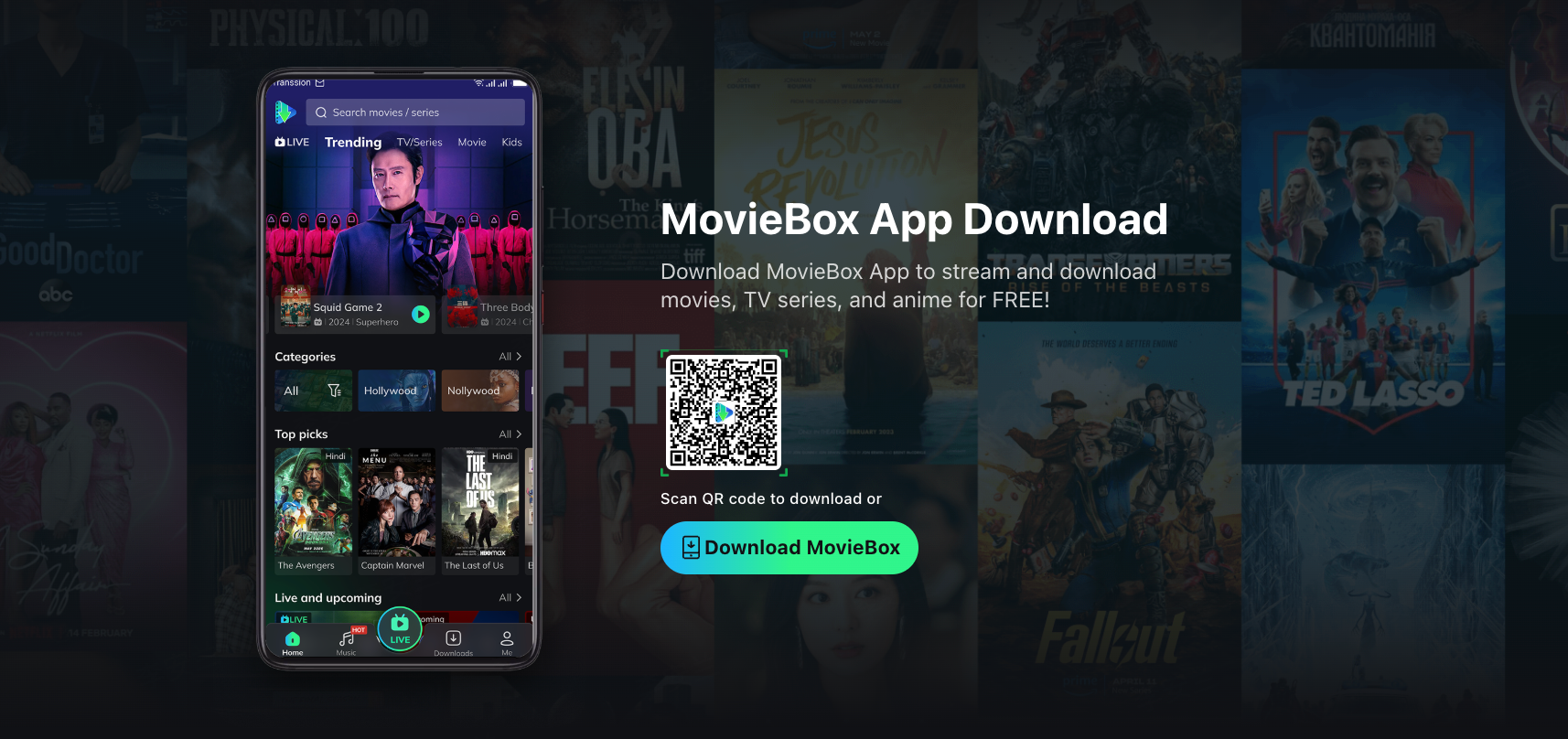
Download MovieBox APK
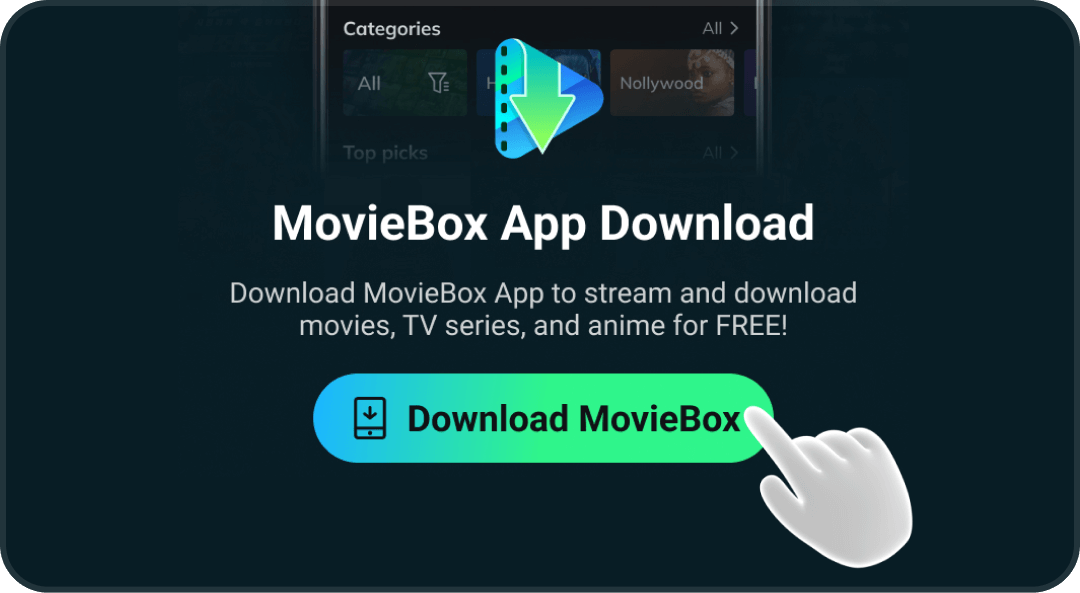
On our MovieBox official website, click the Download Android APK button. You will see a message saying "Downloading file," which means the download has started. Note that if you are a PC user, you can scan the QR code on the page to download the MovieBox APK directly.
Install the MovieBox app
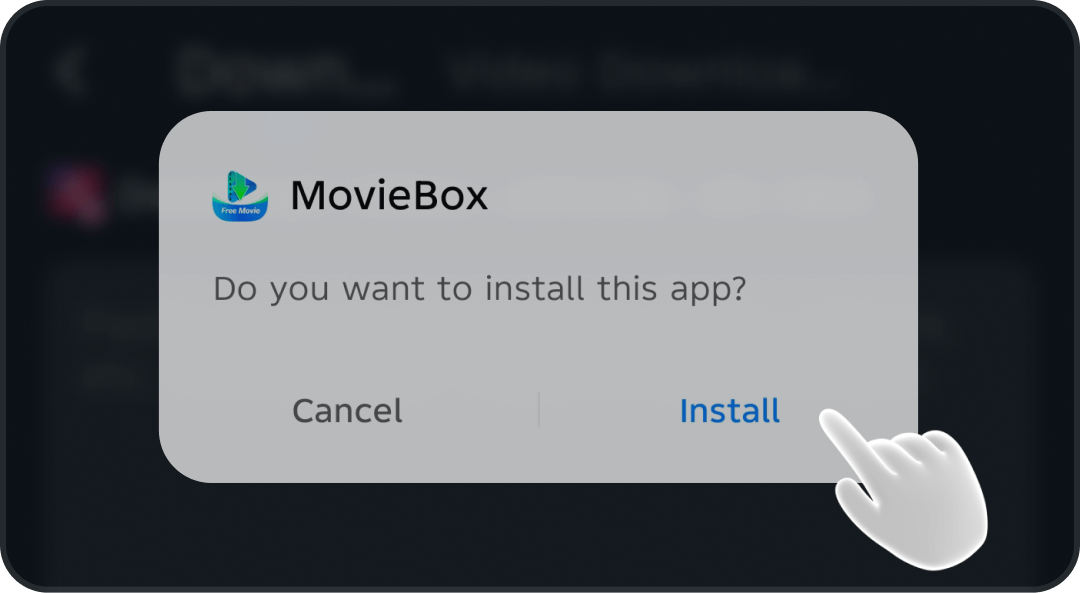
After the download is complete, open the Downloads folder in your browser. You will see an APK file named MovieBox. Tap on this file to start the installation. If you see a pop-up message asking if you want to install unknown apps, tap OK to go to the settings and allow installation.
Watch Movies and Shows
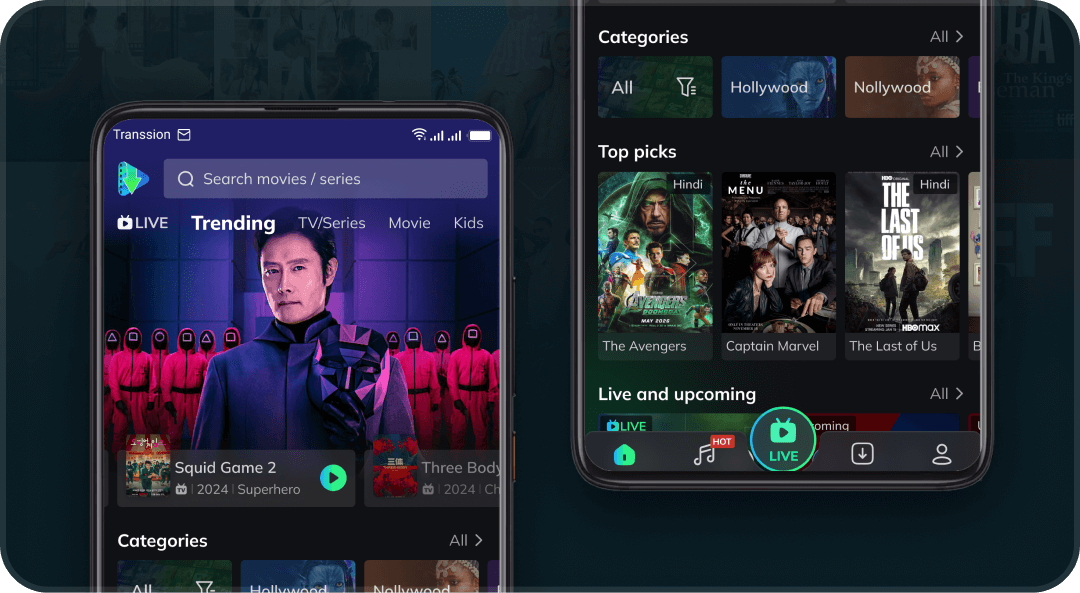
Once the MovieBox app is installed, you can watch thousands of movies and TV shows on your phone, including the latest movies, Korean dramas, anime, and more. With the MovieBox app, you can also choose to download them to your phone, so you can watch offline without using your mobile data.
MovieBox for Mac
Download and install MovieBox on Mac in three simple steps, then your next movie night is ready.
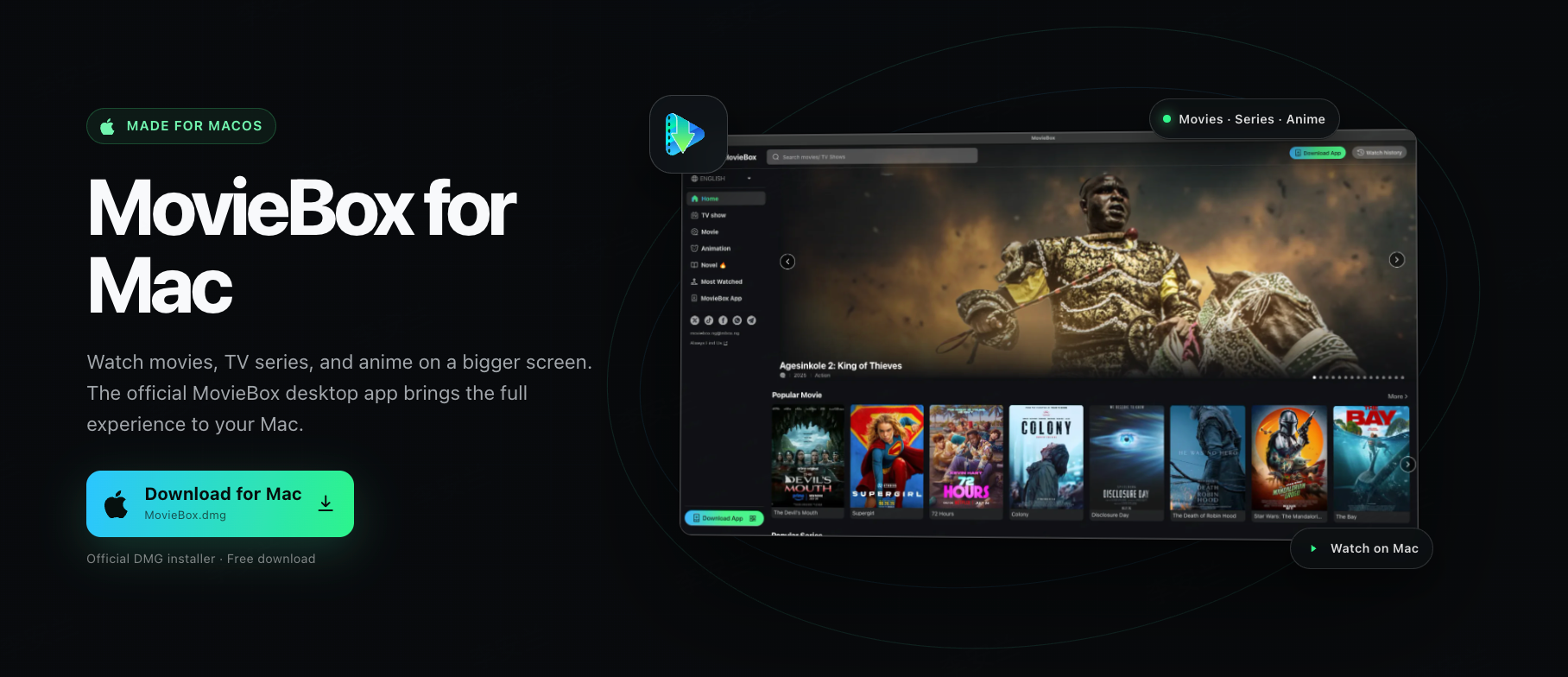
Download the DMG
MovieBox.dmg is the disk image file for Mac. Click the download button and wait for MovieBox.dmg to finish downloading to your Mac.
Move it to Applications
Open the DMG file, then drag the MovieBox icon into the Applications folder.
Open MovieBox
Launch MovieBox from Applications. If macOS asks for confirmation, choose Open.
Your MovieBox experience, now on Mac
A focused desktop experience for finding and watching what you love.
Everything you want to watch, all in one place
Browse popular movies, series, anime, and more from a clean desktop library designed for comfortable viewing.
Browse popular movies in MovieBox for Mac
Details, episodes, and trailers without the clutter
Open a title to see its story, rating, episodes, trailer, cast, and related picks before you start watching.
Movie details and trailer in MovieBox for Mac
MovieBox for Windows
Download and install MovieBox on Windows in three simple steps, then your next movie night is ready.
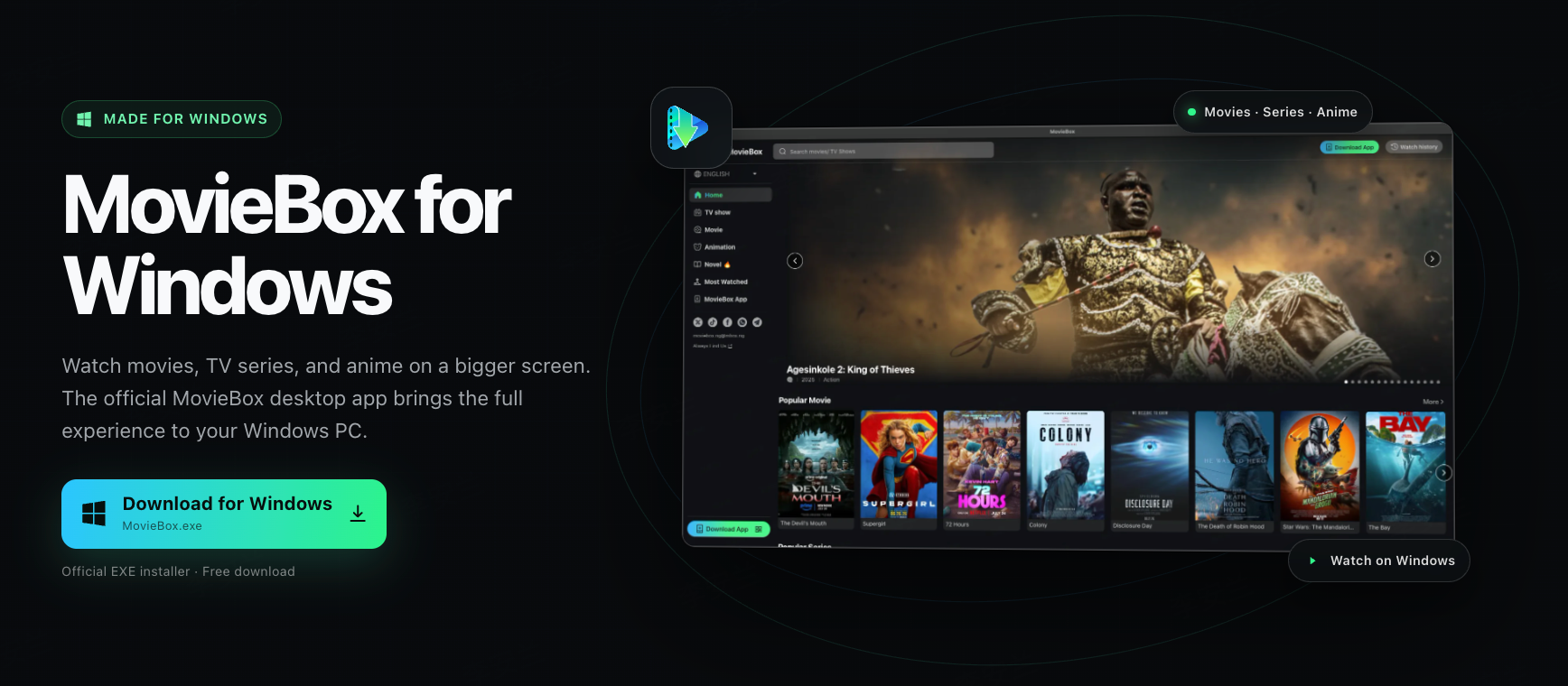
Download the EXE
MovieBox.exe is the application file for Windows. Click the download button and wait for MovieBox.exe to finish downloading to your PC.
Run the installer
Open MovieBox.exe, then follow the Windows installation prompts to complete setup.
Open MovieBox
Launch MovieBox from the Start menu or desktop and start watching.
Your MovieBox experience, now on Windows
A focused desktop experience for finding and watching what you love.
Everything you want to watch, all in one place
Browse popular movies, series, anime, and more from a clean desktop library designed for comfortable viewing.
Browse popular movies in MovieBox for Windows
Details, episodes, and trailers without the clutter
Open a title to see its story, rating, episodes, trailer, cast, and related picks before you start watching.
Movie details and trailer in MovieBox for Windows
MovieBox TV APK Download
If the download button does not respond, copy the link and open it in your browser to download: https://movieboxinfo.com/moviebox-tv-apk
Before You Start
Stable Network
Make sure your TV is connected to the internet and the connection is stable.
Enough Storage
Check that your TV has enough remaining storage space for the APK.
Trusted Source
Use the official download tool or a reliable download page whenever possible.
Allow Permission
If a permission prompt appears, follow the system instructions to allow unknown app installation.
Choose TV Version
If the target app is a mobile app, choose the TV version or an Android TV compatible version first.
Choose the Right Install Method for Your Device
Direct Download via Downloader on TV, Enter Code 9716118
Applicable devices: Fire TV, Downloader, Google TV, and Android TV.
Compatible with: Amazon Fire OS, Google TV, and Android TV.
Supported brands: Amazon Fire TV, Fire TV Cube, Fire TV Stick, Xiaomi TV Cube, and NVIDIA Shield TV.
Direct Download via Downloader on TV, Enter Code 9716118
Install APK on Fire TV with Downloader. The device must run Fire OS or Android/Google TV. According to official information, the Android version generally requires Android 6.0 or later.
Before using Downloader to install an APK on Android TV or Google TV, you may need to enable the “Install unknown apps” permission for Downloader in the system settings the first time.
Fire OS covers Fire TV devices, while Android/Google TV covers supported TV boxes, sticks, and built-in TV systems.
- If the user only has Samsung, LG, Roku, VIZIO, or Apple TV, recommend using a compatible box or stick first.
- If Downloader is blocked from installing APKs, allow unknown app installation for Downloader in system settings.
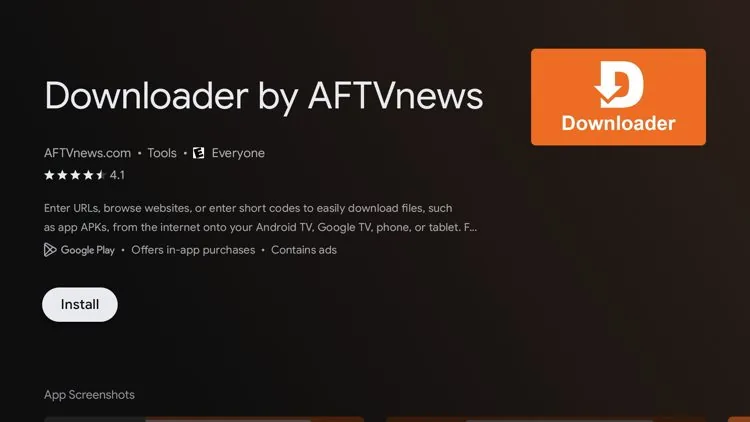
Install the Downloader App
Search for and install the Downloader app from the Appstore. If your TV is not a Fire TV system, please skip to Step 5.
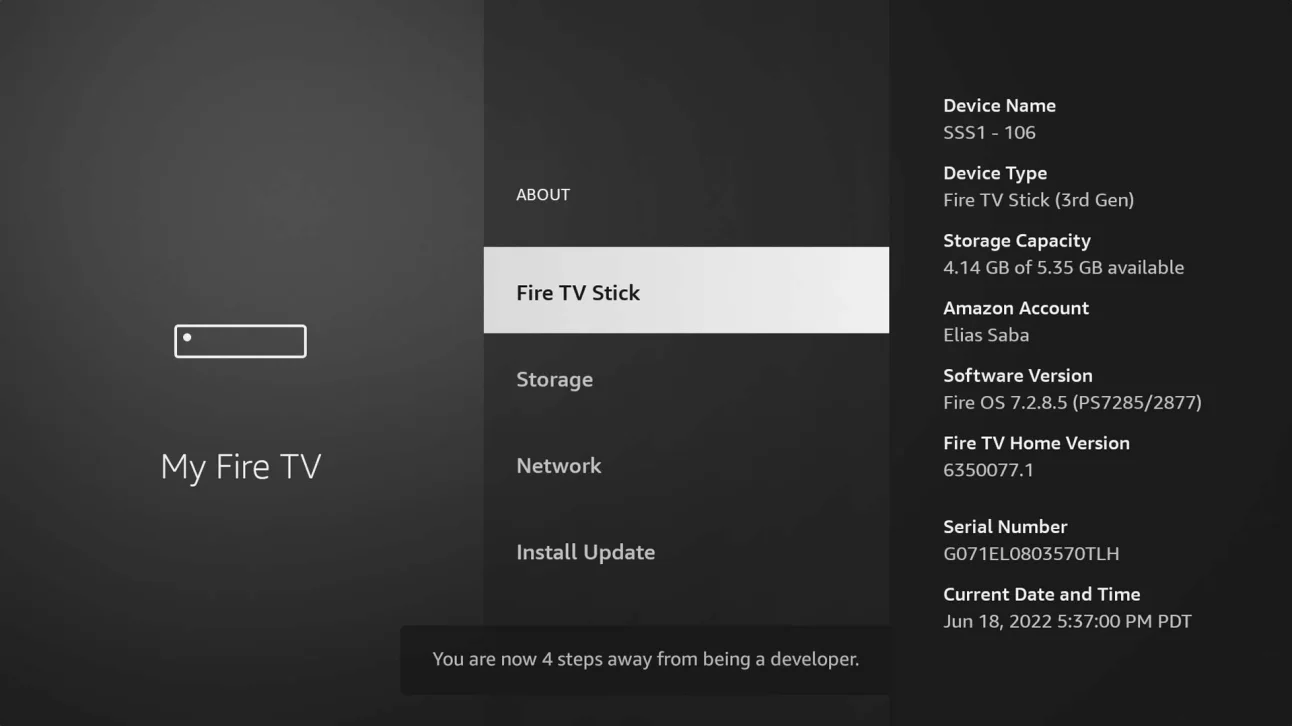
Enable Developer Mode
Enable developer mode so the Developer Options menu appears. Go to Settings > My Fire TV > About, then select the first Fire TV menu item 7 times.
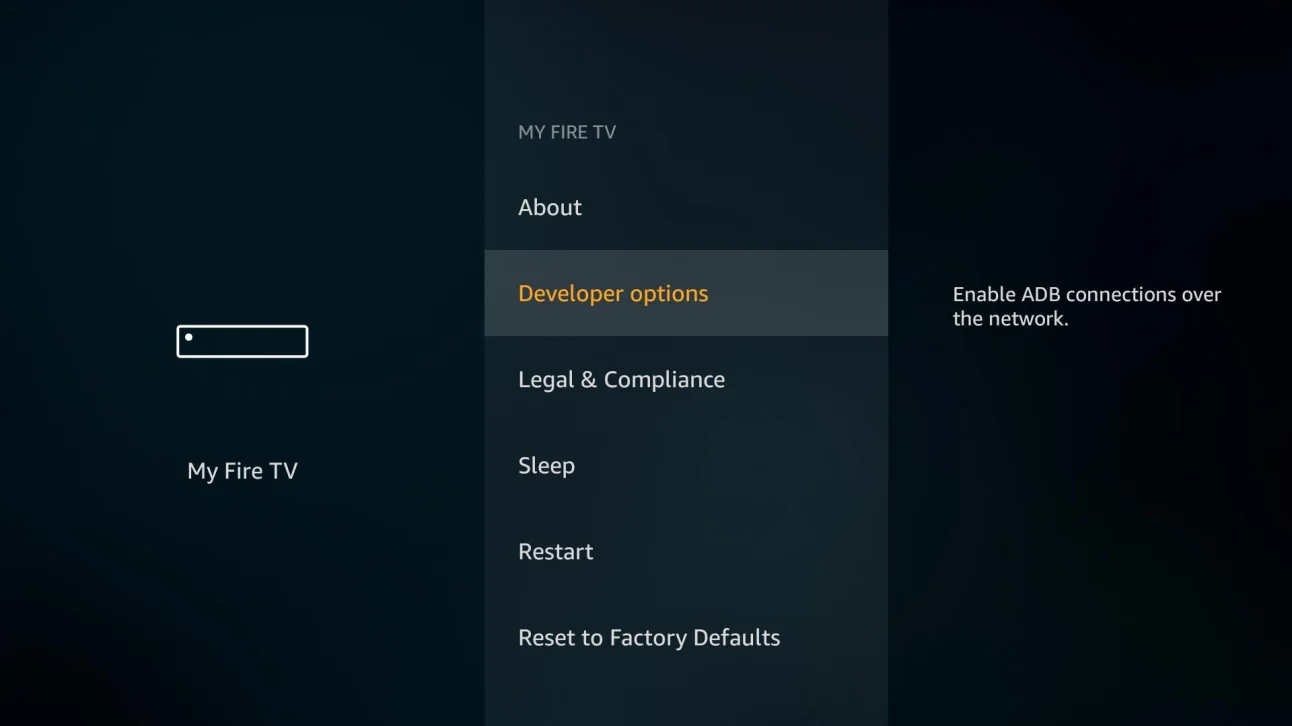
Open Developer Options in Settings
After developer mode is enabled, go back to the settings menu and open Developer Options.
For Fire TV boxes, Fire TV Stick, Fire TV Stick 4K, or Fire TV Cube, navigate to Settings > My Fire TV > Developer Options.
For Fire TV Edition televisions, navigate to Settings > Device & Software > Developer Options.
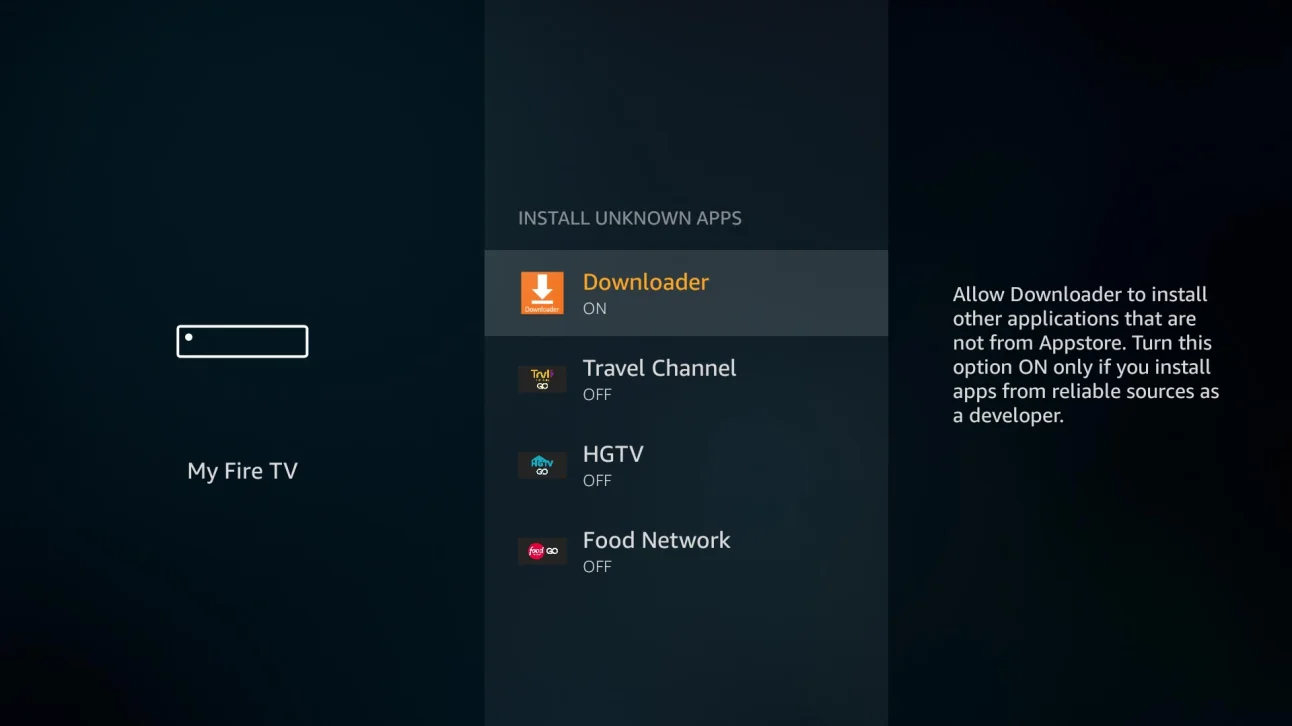
Enable Apps From Unknown Sources
On Fire OS 7 devices, select Install unknown apps, scroll to Downloader, and switch Downloader to ON.
On Fire OS 5 or Fire OS 6 devices, select Apps from Unknown Sources and switch it to ON. You do not need to enable ADB Debugging.
Open Downloader and Allow Storage
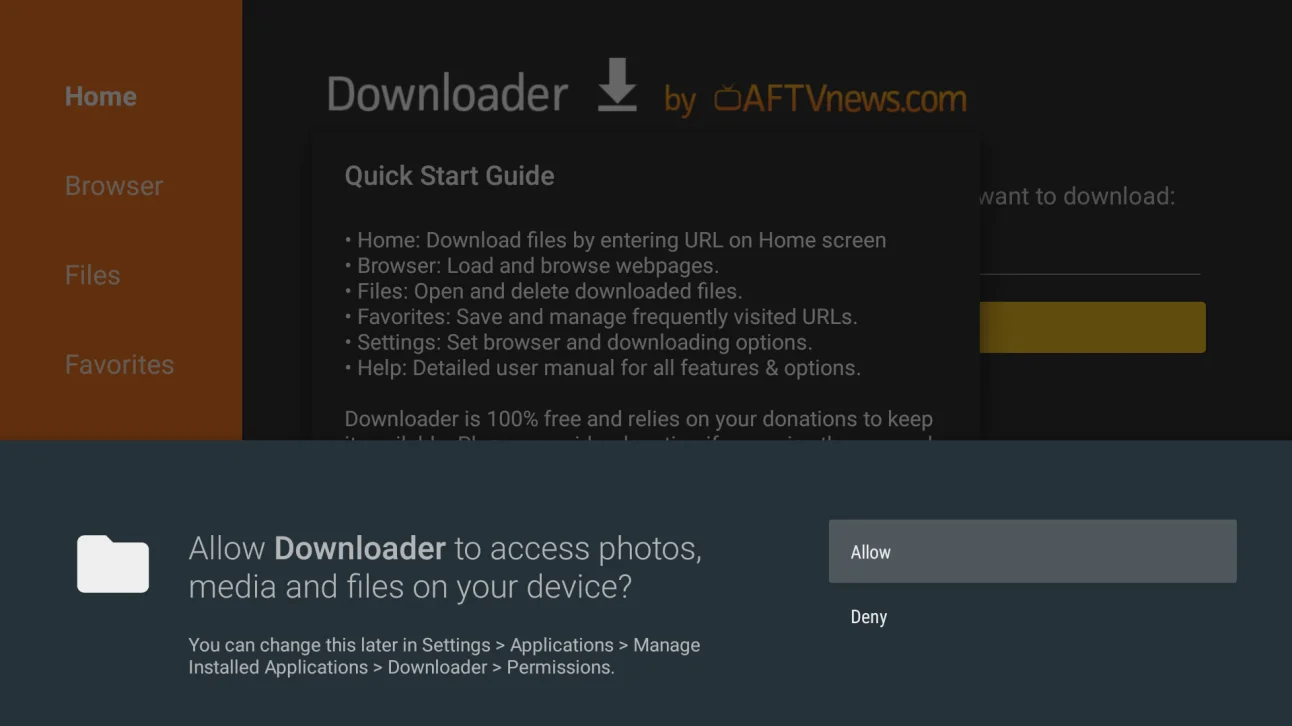
Open Downloader from the TV app list. On Fire OS 6 or Fire OS 7, Downloader will ask for permission to access files on your device. Select Allow.
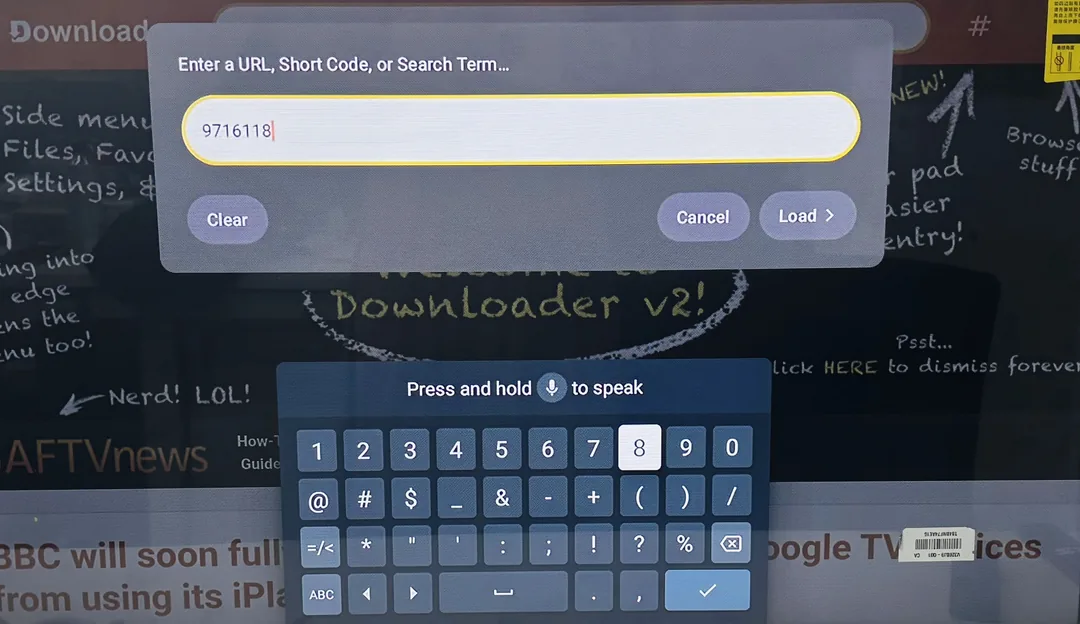
Enter the App Code and Download MovieBox APK
On the Downloader home screen, move to the search box. Enter this app code 9716118.
This short code takes you straight to the MovieBox TV download page.
Find the Download Button and Start the Download
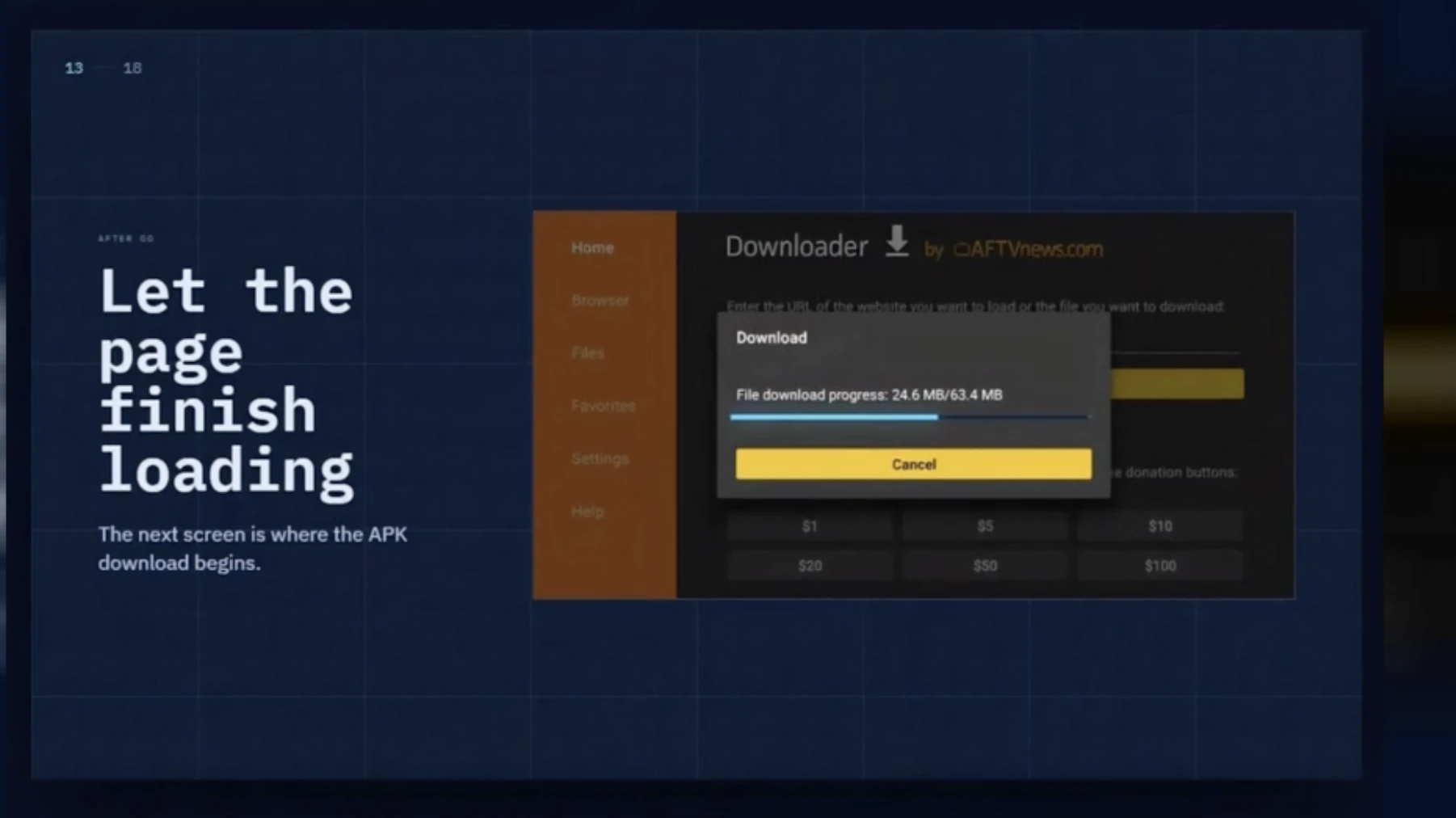
Select go. The MovieBox TV download page will open inside Downloader. Give the page a moment to finish loading. Find the Download Button of MovieBox APK and start the download. Stay on the screen until the file is complete. The installer should open automatically.
Install MovieBox APK
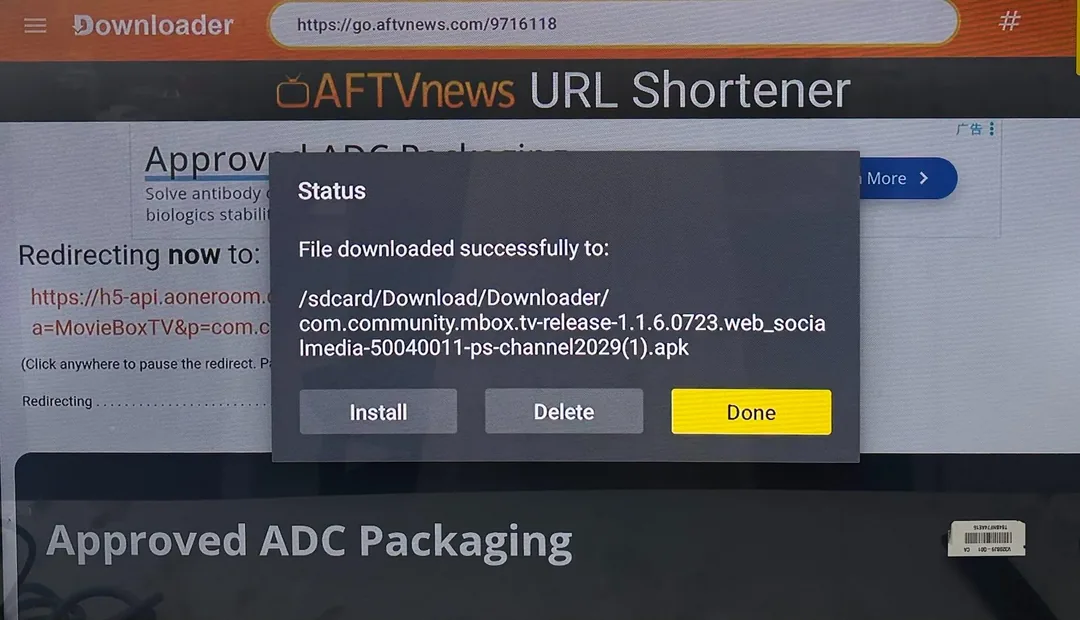
After the APK finishes downloading, TV will show the install screen. Press Down and Right on the remote until the Install button is highlighted, then press the center Select button.
When installation finishes, select Done.
Open MovieBox App
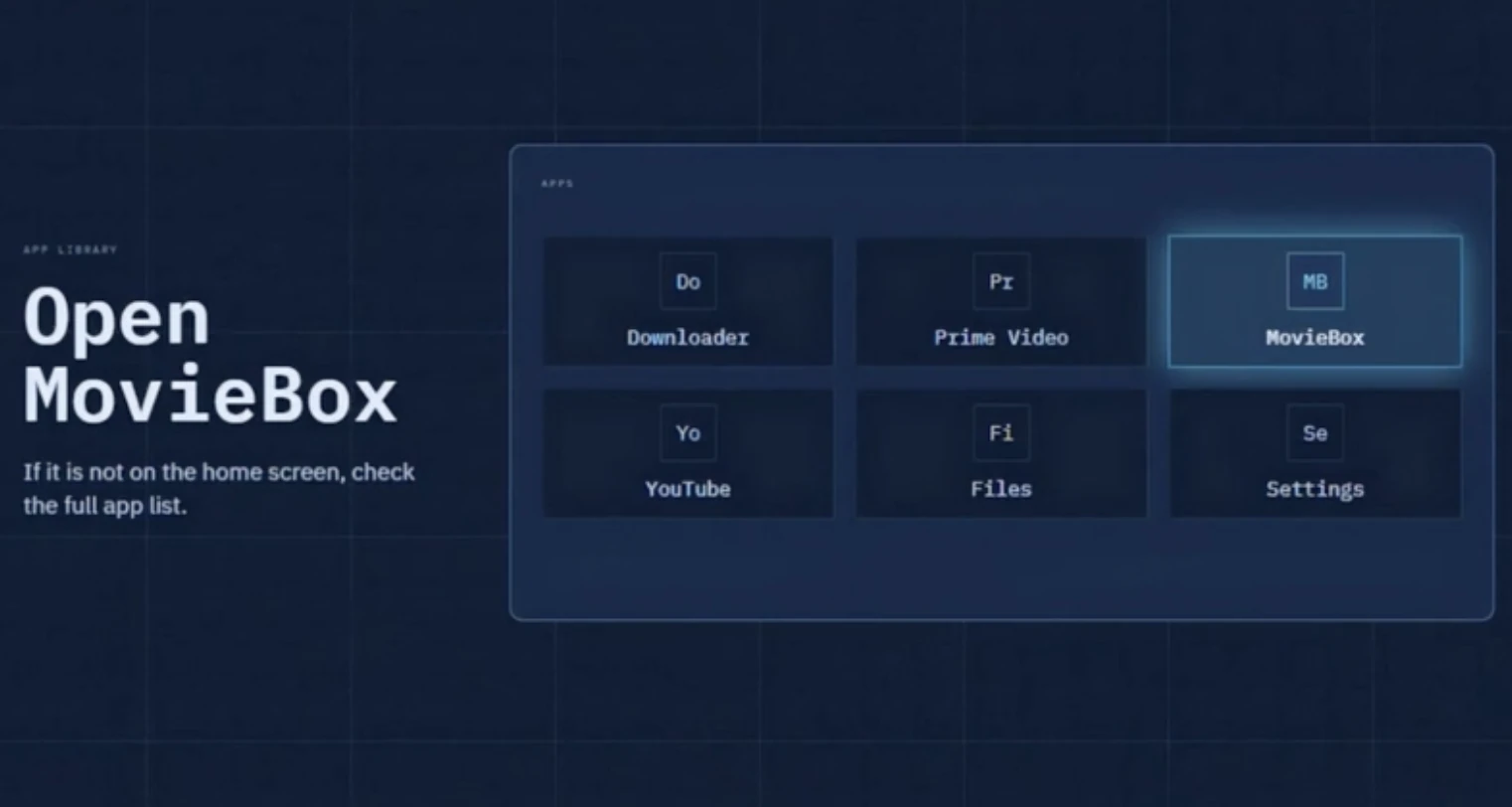
When you see “Done”, MovieBox is installed. You can close the installer now. To launch MovieBox, hold the Home button on your Fire TV remote and select Apps, or find MovieBox in your app library. Select it, and you're ready to watch on TV. If it is not on the home screen, check the full app list.
Download with a TV Browser
Install a TV browser, search for MovieBox APK, download the APK file, allow unknown app installation if prompted, and finish the installation on your Android TV.
Use a browser that supports file downloads on Android TV, such as Downloader, TV Browser, Puffin TV Browser, or another browser available on your device.
If typing with the TV remote is difficult, use voice input or a TV remote app on your phone.
If installation is blocked, enable permission for the browser under Settings > Apps > Special app access > Install unknown apps.
Install a TV Browser
Open the app store on your Android TV and install any browser that supports file downloads. You can use Downloader, TV Browser, Puffin TV Browser, or another browser available on your device.
Install TV browser
Open the Browser
Open the browser after installation. If this is your first time using it, allow the basic permissions it asks for, such as storage or file access.
Open browser
Search for MovieBox APK
Use the browser search box or address bar to search for “MovieBox APK”. If typing with the TV remote is difficult, use voice input or a TV remote app on your phone. Choose a search result that clearly mentions MovieBox APK, APK version, or file size.
Search MovieBox APK
Download the APK from a Reliable Page
On the download page, find the real APK download button and start the download. The correct button usually says “Download APK”, “APK Download”, or shows the APK file size. Wait until the APK file is fully downloaded before leaving the browser.
Download APK
Open the Downloaded APK File
When the download is complete, choose Open if the browser shows a download notification. If no notification appears, open the browser download list or use a file manager to find the APK in the Downloads folder.
Open downloaded APK
Allow Installation Permission
If your TV blocks the installation, go to Settings and allow this browser to install unknown apps. The path is usually: Settings > Apps > Special app access > Install unknown apps. Then enable permission for the browser you used.
Allow installation
Return to the APK Installer
After enabling the permission, go back to the downloaded APK file. If the installation screen closed, open the APK again from the Downloads folder or file manager.
Allow installation
Install the APK
Select Install and wait for the installation to finish. If the button is greyed out, wait a few seconds or use the remote direction keys to highlight the Install button again.